

闪电疯狂赛车
91.44M · 2026-03-23

在处理长篇 Word 文档时,快速定位关键信息并将其突出显示是一项非常实用的技能。无论是审阅合同中的特定条款、标记技术文档中的关键术语,还是在学术论文中强调重要概念,掌握文本查找和高亮技术都能显著提高工作效率。本文将深入探讨如何使用 Python 实现多种场景下的 Word 文档文本查找与高亮功能。
在文档处理和审阅工作流程中,文本查找和高亮有着广泛的应用:
通过 Python 自动化这一过程,可以实现批量处理、模式匹配和集成到更大的文档管理工作流中。
在开始之前,需要安装支持 Word 文档操作的 Python 库。Spire.Doc for Python 提供了全面的 API 来处理 DOCX 格式文档的文本查找和高亮功能。
pip install Spire.Doc
安装完成后,在 Python 脚本中导入相关模块即可开始工作:
from spire.doc import *
from spire.doc.common import *
Word 文档文本高亮的核心步骤包括:加载文档、查找目标文本、应用高亮颜色、保存结果。以下是最基础的全文本高亮示例:
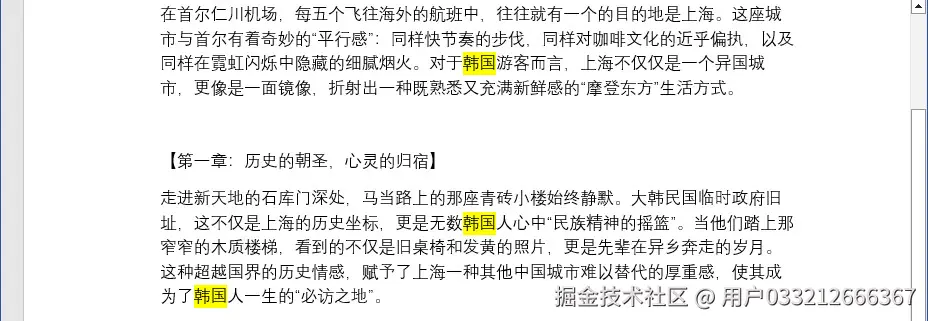
当你需要在整个文档中查找并高亮所有匹配的特定文本时,可以使用 FindAllString() 方法。这个方法会返回一个包含所有匹配文本选择对象的集合,然后你可以遍历这个集合并为每个匹配项设置高亮颜色。这种方法适用于需要全局标记特定词汇的场景,比如在合同中标记所有的"甲方"和"乙方":
from spire.doc import *
from spire.doc.common import *

inputFile = "示例.docx"
outputFile = "高亮结果.docx"

# 创建 Word 文档对象
document = Document()

# 从磁盘加载文档
document.LoadFromFile(inputFile)

# 查找文本(区分大小写,不区分全角半角)
textSelections = document.FindAllString("韩国", False, True)

# 为所有查找到的文本设置高亮颜色
for selection in textSelections:
    selection.GetAsOneRange().CharacterFormat.HighlightColor = Color.get_Yellow()

# 保存修改后的文档
document.SaveToFile(outputFile, FileFormat.Docx)
document.Close()
上述代码展示了最基本的查找和高亮流程。FindAllString() 方法接受三个参数:要查找的文本、是否区分大小写、是否区分全角半角字符。返回的 textSelections 集合包含了文档中所有匹配的文本范围,通过遍历这个集合,我们可以为每个匹配项应用相同的高亮样式。
在实际应用中,你可能需要使用不同的颜色来区分不同类型的文本。这种多色高亮功能对于分类标记、优先级区分等场景非常有用:
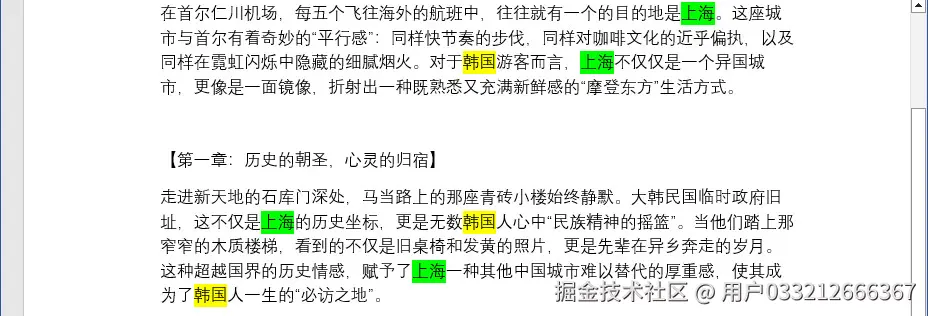
当需要同时标记多种类型的文本时,可以为每种类型分配不同的颜色。例如,在法律文档中,可以用黄色标记甲方信息,用绿色标记乙方信息,用粉色标记金额数字。这种视觉上的区分有助于快速识别和理解文档结构:
from spire.doc import *
from spire.doc.common import *

inputFile = "示例.docx"
outputFile = "多色高亮.docx"

document = Document()
document.LoadFromFile(inputFile)

# 查找并高亮 - 使用黄色
partyA_selections = document.FindAllString("韩国", False, True)
for selection in partyA_selections:
    selection.GetAsOneRange().CharacterFormat.HighlightColor = Color.get_Yellow()

# 查找并高亮 - 使用绿色
partyB_selections = document.FindAllString("上海", False, True)
for selection in partyB_selections:
    selection.GetAsOneRange().CharacterFormat.HighlightColor = Color.get_LightGreen()

# 保存文档
document.SaveToFile(outputFile, FileFormat.Docx)
document.Close()
Spire.Doc 支持多种预定义颜色,包括 Yellow(黄色)、LightGreen(浅绿色)、Pink(粉色)、Cyan(青色)、Magenta(洋红色)等。你可以根据实际需要选择合适的颜色组合,创建清晰的视觉层次。
对于更复杂的查找需求,比如查找特定格式的日期、邮箱地址或电话号码,可以使用正则表达式进行模式匹配:
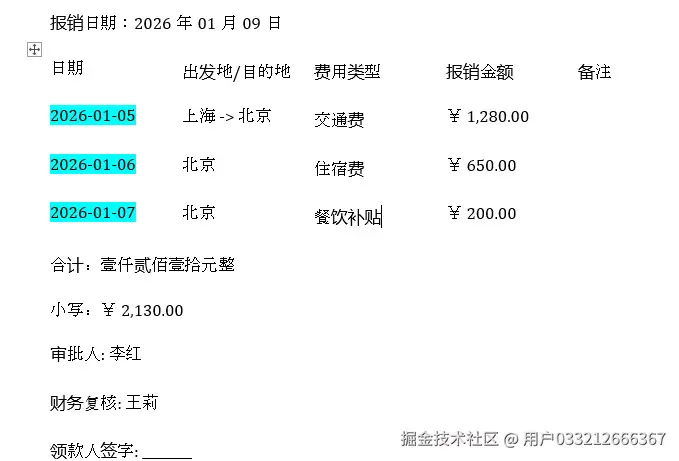
当需要查找的文本遵循某种模式而非固定字符串时,正则表达式提供了强大的匹配能力。例如,你可能需要高亮文档中所有的日期(格式为 YYYY-MM-DD)、所有的邮箱地址,或者所有以特定前缀开头的编号。使用正则表达式可以精确匹配这些模式,而不仅仅是固定的文本:
from spire.doc import *
from spire.doc.common import *

inputFile = "例子.docx"
outputFile = "正则高亮.docx"

document = Document()
document.LoadFromFile(inputFile)


# 1. 查找并高亮日期 (YYYY-MM-DD)
date_regex = Regex(r"d{4}-d{2}-d{2}")
date_selections = document.FindAllPattern(date_regex)

if date_selections:
    for selection in date_selections:
        # 获取匹配到的文本范围并设置高亮
        selection.GetAsOneRange().CharacterFormat.HighlightColor = Color.get_Cyan()

# 2. 查找并高亮邮箱
email_regex = Regex(r"[a-zA-Z0-9._%+-]+@[a-zA-Z0-9.-]+.[a-zA-Z]{2,}")
email_selections = document.FindAllPattern(email_regex)

if email_selections:
    for selection in email_selections:
        selection.GetAsOneRange().CharacterFormat.HighlightColor = Color.get_Magenta()

# --- 保存结果 ---
document.SaveToFile(outputFile, FileFormat.Docx)
document.Close()
FindAllPattern() 方法专门用于正则表达式匹配,它会查找文档中所有符合指定模式的文本。这种方法特别适用于:
结合以上技术,可以构建一个智能文档标注工具,自动识别并高亮多种类型的信息:
import os
from spire.doc import *
from spire.doc.common import *

class DocumentHighlighter:
    def __init__(self, doc_file):
        self.doc_file = doc_file
        self.document = Document()
        self.document.LoadFromFile(doc_file)

    def _apply_highlight(self, selections, color):
        """内部辅助方法:遍历并应用高亮"""
        if selections:
            for selection in selections:
                # 获取匹配到的文本范围并设置高亮
                selection.GetAsOneRange().CharacterFormat.HighlightColor = color
            return len(selections)
        return 0

    def highlight_keywords(self, keywords, color=None):
        """高亮指定的关键词列表(精确匹配字符串)"""
        if color is None:
            color = Color.get_Yellow()

        total = 0
        for keyword in keywords:
            # FindAllString 参数:待查文本, 是否区分大小写, 是否全字匹配
            selections = self.document.FindAllString(keyword, False, True)
            total += self._apply_highlight(selections, color)

        print(f"已高亮关键词:{', '.join(keywords)} (共 {total} 处)")

    def highlight_dates(self, color=None):
        """高亮文档中的所有日期 (YYYY-MM-DD)"""
        if color is None:
            color = Color.get_Cyan()

        # 使用 Spire 专用的 Regex 包装
        pattern = Regex(r"d{4}-d{2}-d{2}")
        selections = self.document.FindAllPattern(pattern)

        count = self._apply_highlight(selections, color)
        print(f"已高亮日期:共 {count} 处")

    def highlight_emails(self, color=None):
        """高亮文档中的所有邮箱地址"""
        if color is None:
            color = Color.get_Magenta()

        pattern = Regex(r"[a-zA-Z0-9._%+-]+@[a-zA-Z0-9.-]+.[a-zA-Z]{2,}")
        selections = self.document.FindAllPattern(pattern)

        count = self._apply_highlight(selections, color)
        print(f"已高亮邮箱:共 {count} 处")

    def highlight_phone_numbers(self, color=None):
        """高亮文档中的电话号码"""
        if color is None:
            color = Color.get_LightGreen()

        # 优化后的电话正则,适配更稳健
        pattern = Regex(r"(+?d{1,3}[-.s]?)?((?d{3})?[-.s]?)?d{3}[-.s]?d{4}")
        selections = self.document.FindAllPattern(pattern)

        count = self._apply_highlight(selections, color)
        print(f"已高亮电话:共 {count} 处")

    def custom_highlight(self, pattern_str, color, is_regex=False):
        """自定义高亮规则"""
        if is_regex:
            # 如果是正则,必须包装
            selections = self.document.FindAllPattern(Regex(pattern_str))
        else:
            selections = self.document.FindAllString(pattern_str, False, True)

        count = self._apply_highlight(selections, color)
        print(f"已应用自定义高亮 '{pattern_str}':共 {count} 处")

    def save(self, output_file):
        """保存修改后的文档"""
        self.document.SaveToFile(output_file, FileFormat.Docx)
        print(f"文档已保存:{output_file}")

    def close(self):
        """释放资源"""
        if self.document:
            self.document.Close()

# --- 使用示例 ---
# 确保文件路径正确
input_path = "商务合同.docx"
if os.path.exists(input_path):
    highlighter = DocumentHighlighter(input_path)

    # 1. 高亮关键术语
    highlighter.highlight_keywords(["甲方", "乙方", "合同期限", "违约责任"])

    # 2. 高亮日期
    highlighter.highlight_dates()

    # 3. 高亮联系方式
    highlighter.highlight_emails()
    highlighter.highlight_phone_numbers()

    # 4. 自定义正则高亮(例如:匹配“r民币...元”)
    highlighter.custom_highlight(r"r民币d+(.d+)?元", Color.get_Pink(), is_regex=True)

    highlighter.save("已标注合同.docx")
    highlighter.close()
else:
    print(f"未找到输入文件: {input_path}")
这个工具类提供了:
确保查找参数设置正确,特别是大小写和全角半角设置:
# 不区分大小写,不区分全角半角
selections = document.FindAllString("keyword", False, True)
选择对比度较高的颜色,或者考虑同时加粗文本:
char_format = selection.GetAsOneRange().CharacterFormat
char_format.HighlightColor = Color.get_Yellow()
char_format.Bold = True  # 同时加粗
优化正则表达式模式,使其更加精确:
# 更精确的日期匹配,避免匹配到其他数字
date_pattern = r'bd{4}-d{2}-d{2}b'
对于大型文档,可以考虑分批次处理或限制查找范围:
# 只在前 10 页中查找
for i in range(min(10, document.Sections.Count)):
    section = document.Sections[i]
    # 在特定节中查找
查找并高亮 Word 文档中的文本是文档自动化处理中的实用技能。通过本文的介绍,我们学习了:
FindAllString() 方法进行基础文本查找和高亮这些技术可以直接应用于合同审阅、学术写作、技术文档编辑、数据分析报告等实际场景。掌握了基础的查找和高亮方法后,还可以进一步探索批量文档处理、与其他 Office 应用的集成、以及结合自然语言处理技术进行智能内容分析,构建更加完善的文档自动化系统。